Interactive MATLAB (Web)
Opening MATLAB Form
-
The first step is to select the
Interactive appsand then click theMATLAB (Web)GUI in the Open OnDemand dashboard. -
Then you will see a form which needs to be filled to launch the MATLAB GUI on compute nodes.
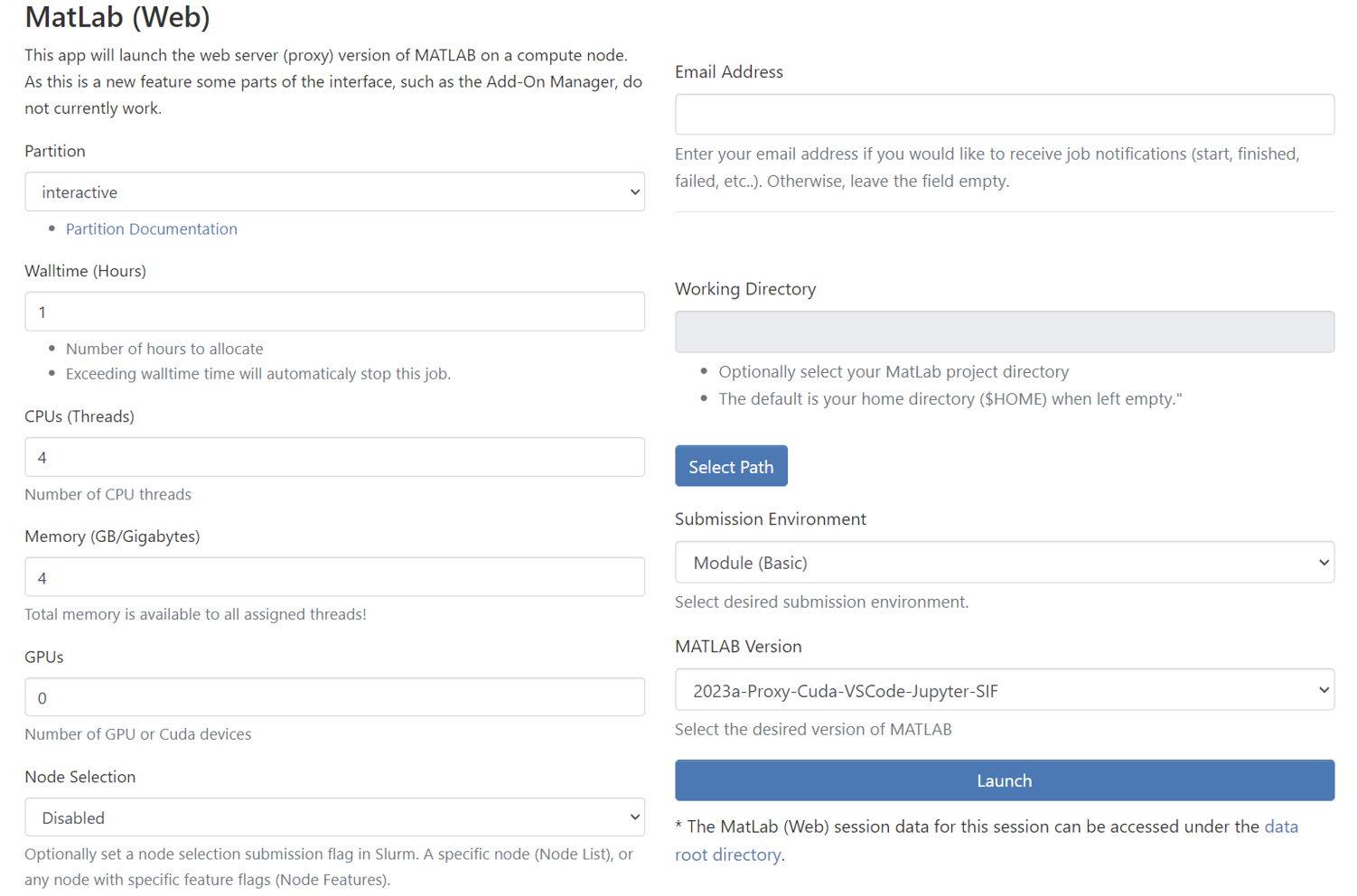
Partition
-
Partitions are work queues that has computational nodes in it to run the jobs. The partitions available in Colibri are
general-cpu,general-gpu,interactive-cpu,interactive-gpu,backfill,inbre, andprism. -
However, you will see only the list of authorized partitions available for your Colibri account and hence, you won’t see the partitions which you don’t have authorization in the select dropdown.
-
Select one of the partitions where you want to submit your job. Refer to the page → Partitions in Colibri to select the ideal partition for your job.
-
Jobs on the
backfillpartition are subject to being stopped and requeued.
Walltime(Hours)
-
Sets the Walltime for your job. The job gets killed if the Walltime you set gets elapsed. The maximum Walltime for each partition is listed in the table below.
Partition Max Hours backfill338
general-cpu169
general-gpu169
inbre169
interactive-cpu25
interactive-gpu25
prism169
CPUs(Threads)
-
Sets the Number of CPUs(Threads) for the job. The default and minimum value is 1 CPU thread.
Memory (GB/Gigabytes)
-
Sets the memory for the job in terms of GB. The memory you select is available to all assigned threads for the job. The default and minimum value is 1 GB.
|
GPUs
-
GPUs are available only in the partitions that contain GPU nodes:
general-gpu,interactive-gpu,backfill,inbre, andprism. If you select one of these partitions, you can see theGPUsdropdown enabled.
Node Selection
This is an optional node selection feature for submissions to Slurm. It allows users to specify a particular node or any node with specific feature flags.
Selection Options
There are four available options for node selection:
-
Disabled: This is the default setting. When "Disabled" is selected, the application will not send any specific node preferences to Slurm during job submission.
-
Node List: With this option, users can specify a particular node (one single node) where the job should run.
-
Node Features (--constraint): Users can select this option if they want to run their job on any node that meets a specific feature.
-
Node Features (--prefer): This option is similar to the "--constraint" option, but it only indicates a preference. If it’s not available, it might be scheduled elsewhere.
Email Address
-
If you want to get notified via email when the job starts/fails/ends, enter the email address associated with the Colibri account.
-
You can leave the text field
blankif you don’t want job notifications.
Submission Environment
You can select your desired submission environment from the drop down list. For example, to use an Apptainer image, select the Container option.
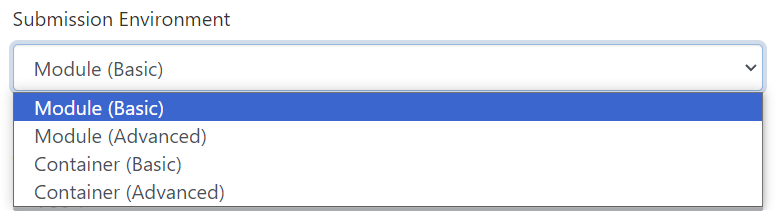
This option allows you to launch the interactive application with the default software modules.
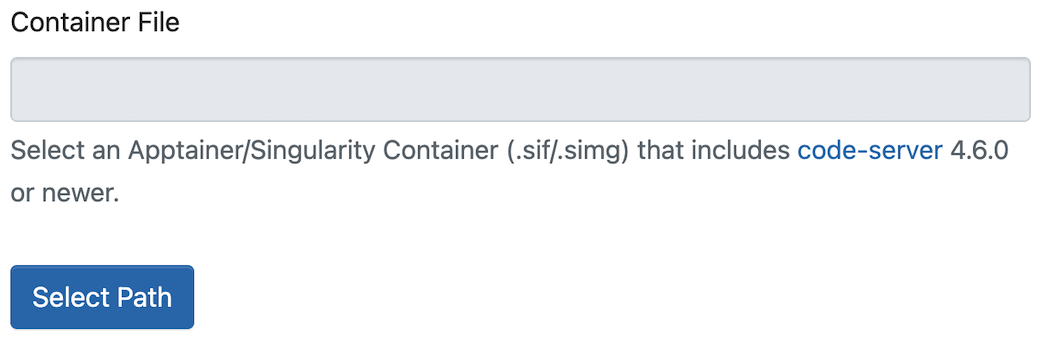
Instead of you using Environmental Modules, you can use an Apptainer/Singularity Container. You just need to select the appropriate SIF image.
Launching the Interactive Session
-
Once all the form fields are set, you can click the
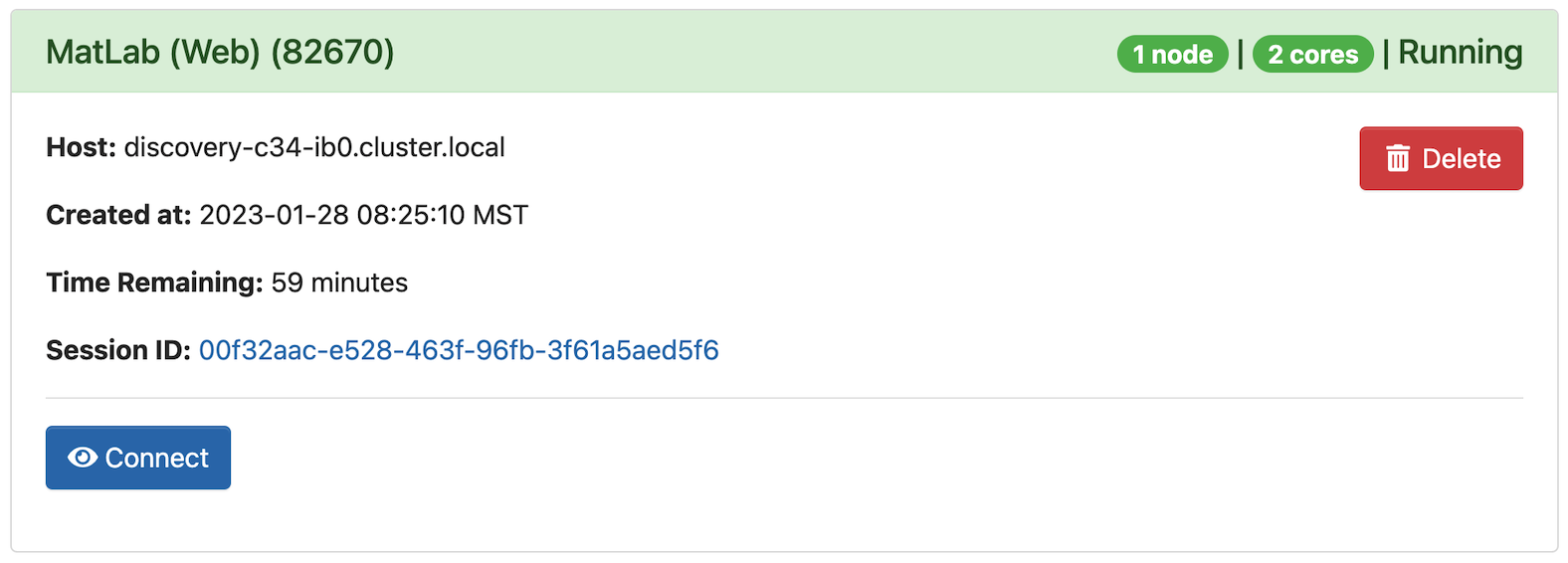
Launchbutton. The interactive session will be launched and you will see the below output.
-
The above output shows that the interactive MATLAB session has been launched successfully. You will see the
Connectbutton only if the resources you have requested becomes available. Else, you might need to wait for some more minutes for the resources allocation and then theLaunch MATLABbutton appears. -
To open
MATLAB Webclick theConnectbutton.
|
The interactive session won’t be launched if you try to submit your job to the partition that you don’t have access to. Also, the page gets reloaded and you need to select the value for the form fields again since the form gets reset. |
Opening MATLAB Graphical User Interface
-
On clicking the
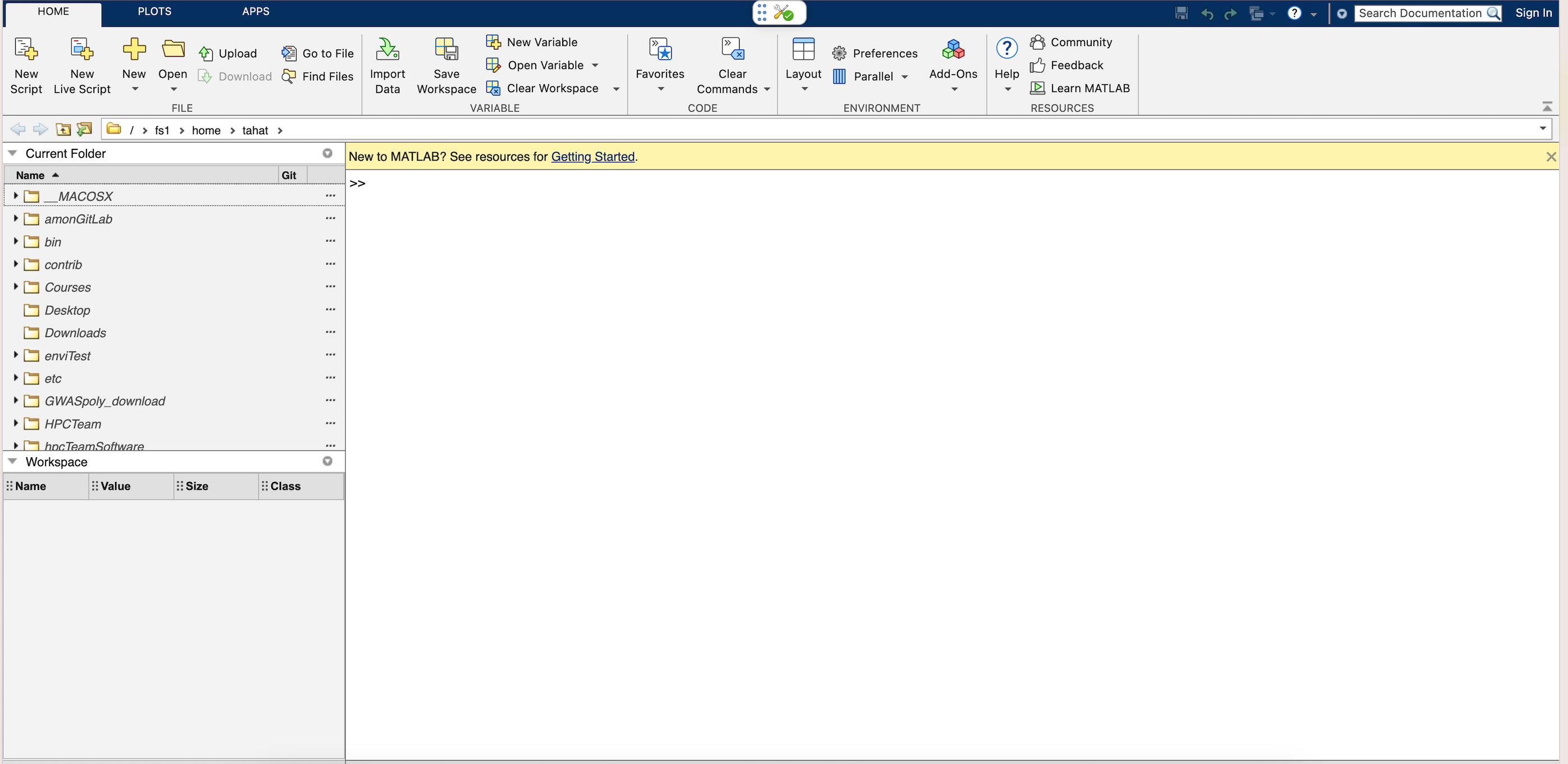
Connectbutton, the MATLAB Web opens in a new tab.
-
The above output shows that the MATLAB Web has been launched.
Killing the Interactive Session
-
To kill the interactive session, you can simply press the
closeicon of the MATLAB GUI window. This will close the session and the cluster resources get freed. -
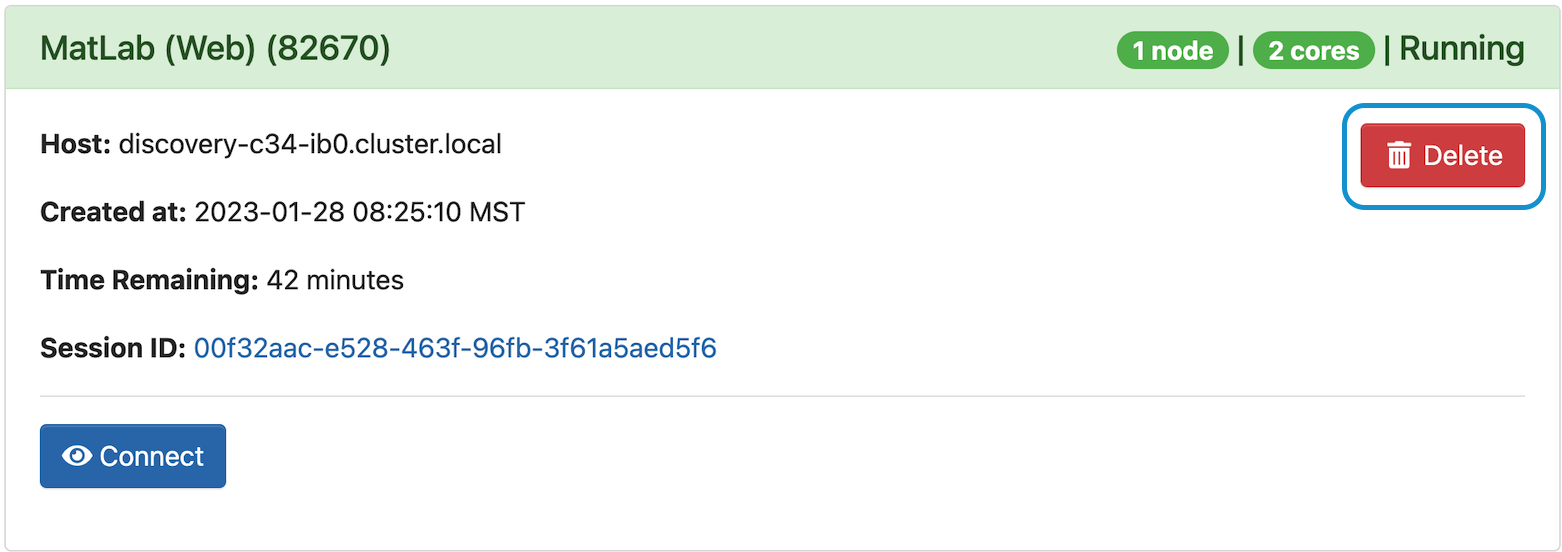
Another way to kill the session is to go to the
My Interactive sessionstab and select theDeletebutton of the current interactive session.
|
Whenever you are done with the work, it’s always recommended to kill/delete the interactive session running on the compute nodes and free the resources. |